
Installation and Configuration
Seller tab
The Seller tab allows you to enter the sender’s contact information: this information is transmitted to Mondial Relay – InPost when creating each shipment and may appear on labels and in tracking emails.
Access the Seller tab
From your WordPress back-office, click on the Mondial Relay – InPost menu in the left column.
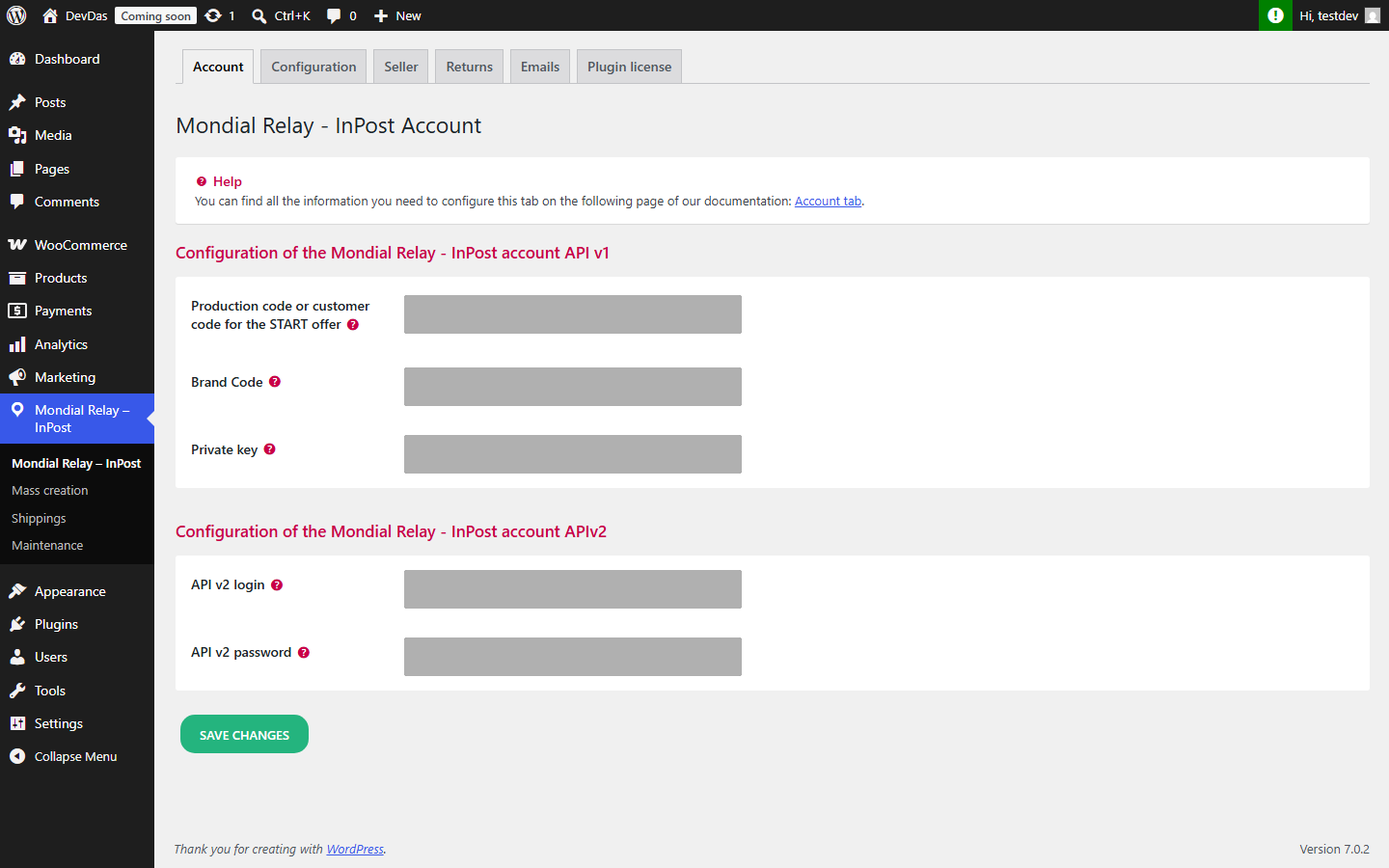
Then click on the Seller tab (1).
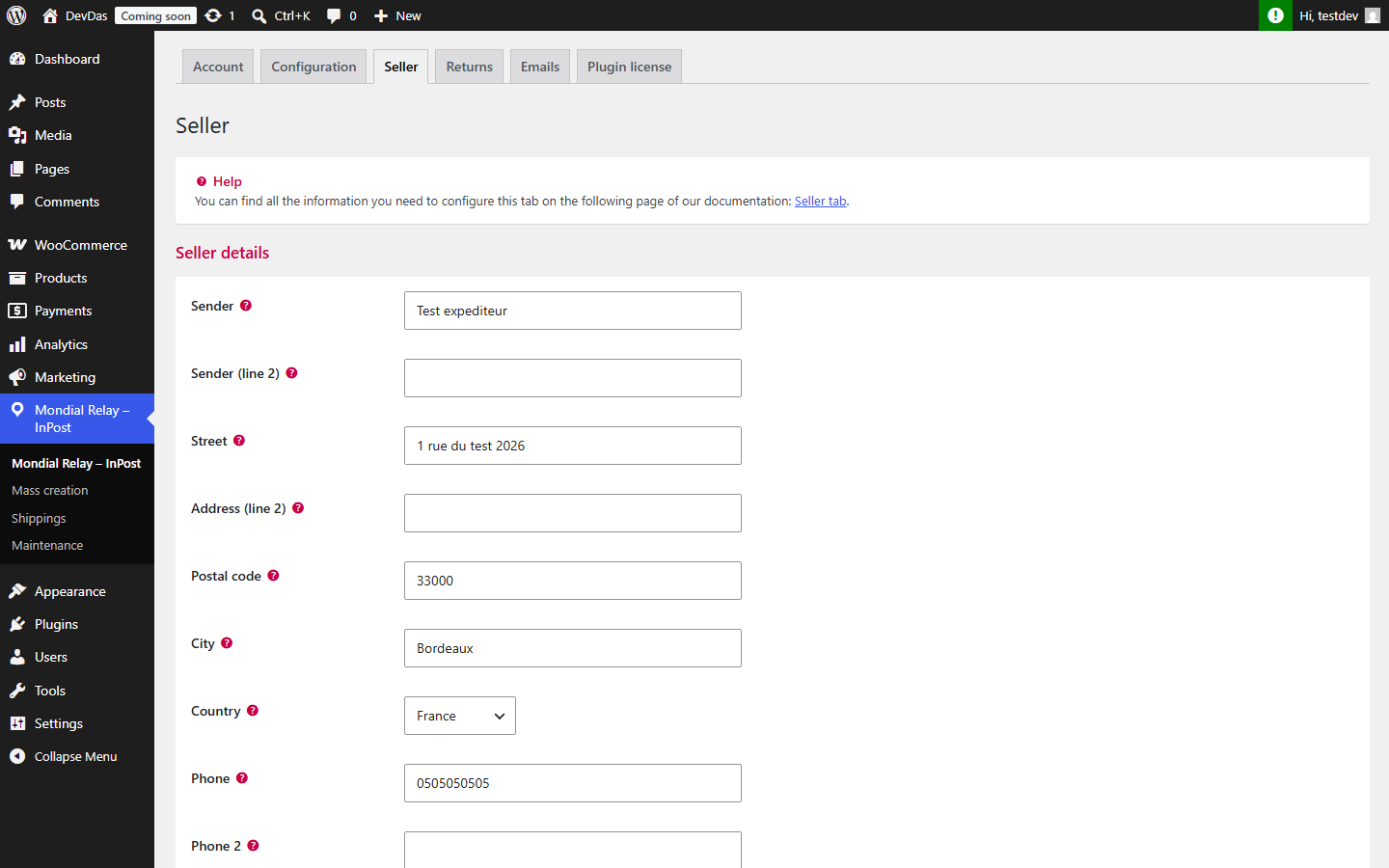
Seller contact information
Fill in the following fields (fields marked Required when hovering over the question mark must be completed):
- Sender: name of your company or sender (required);
- Sender (Additional): optional additional information;
- Street: sender’s address (required);
- Address (Additional): optional address supplement;
- Postal Code and City (required);
- Country (required);
- Phone (required) and Phone 2 (optional);
- Email address (optional).
Once your contact information is entered, click on Save changes.