
Installation and Configuration
Account tab
The Account tab allows you to link the plugin to your Mondial Relay – InPost account by entering the identifiers that were provided to you when you subscribed to your contract.
Access the Account tab
From your WordPress back-office, click on the Mondial Relay – InPost menu in the left column (1). The Account tab is displayed by default.
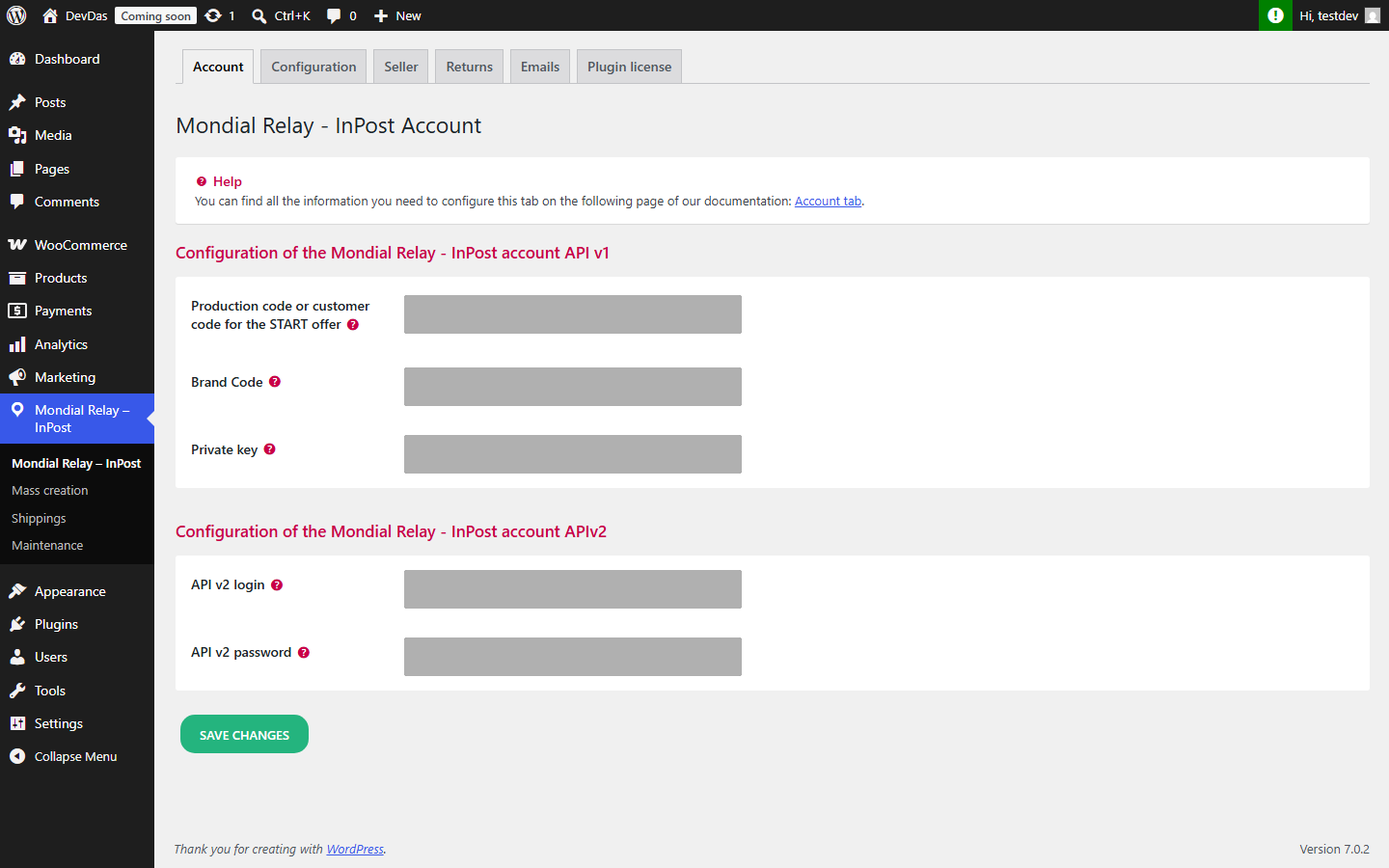
Two settings blocks are available: one for API v1 (1), and another for API v2 (2), as shown in the screenshot below.
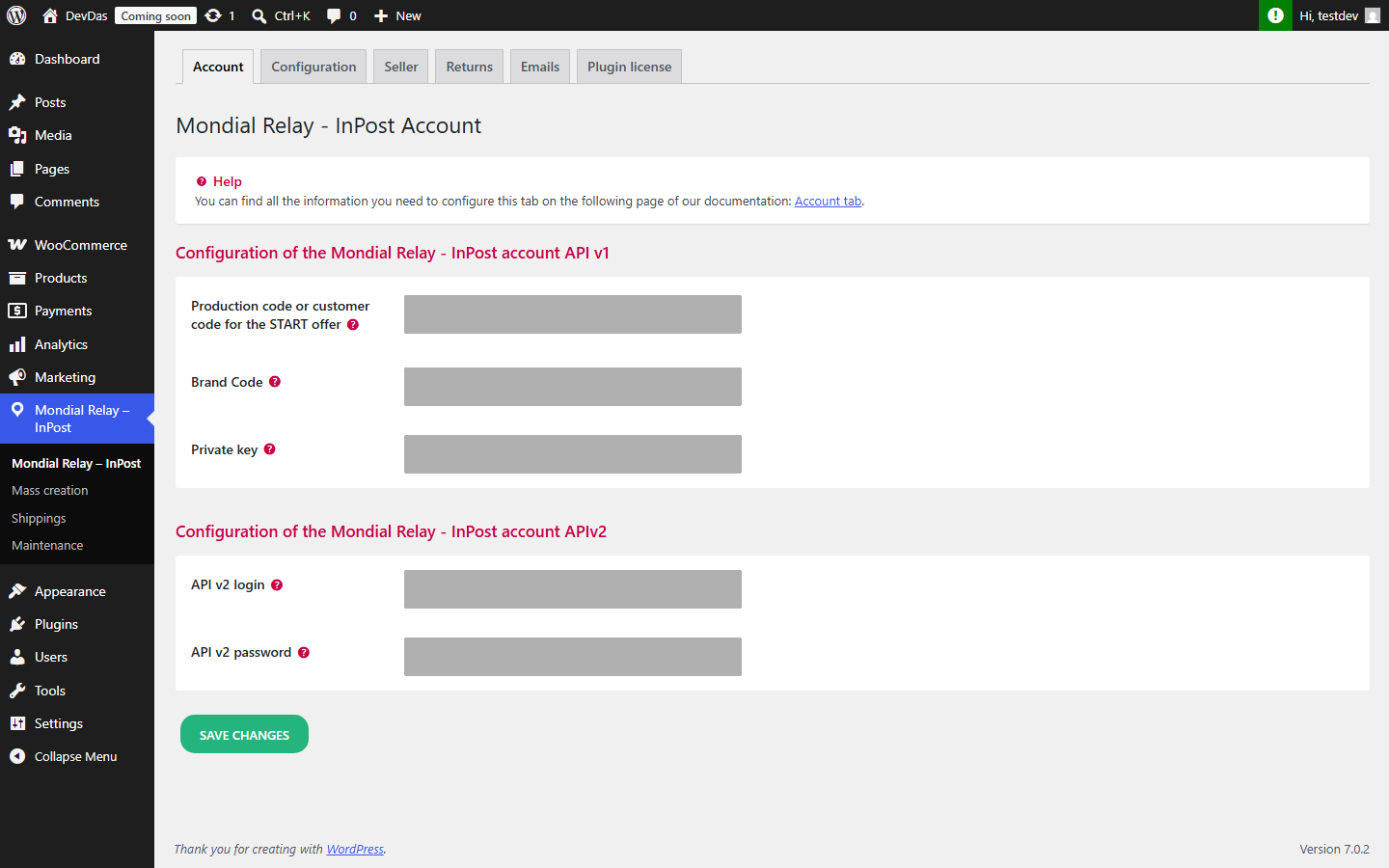
1 Mondial Relay Account Configuration – API v1
These three pieces of information are essential for the plugin to work properly:
- Production Store or Store Code for the START offer
- Brand Code
- Private Key
They are provided to you by your business contact or are available in your profile as part of the Start Offer. You can also find them in your customer account on https://www.mondialrelay.fr/.
If you do not yet have a contract with Mondial Relay, you can subscribe to an offer on the https://www.mondialrelay.fr/ website or contact them through their contact form.
2 Mondial Relay Account Configuration – API v2
This login and password allow you to activate API v2 in the plugin. This API v2 must first be activated in your online Connect space, in the API v2 activation menu.
API v2 is mandatory in the following cases:
- home delivery in France (HOM mode);
- delivery to Poland, Austria or Germany.
Once you have entered your identifiers, click on Save changes.
For the configuration of the default insurance level for your shipments and the number of Point Relais® displayed to the customer, go to the Configuration tab.