Installation and Configuration
Returns Tab
Overview
The Mondial Relay – InPost plugin for WordPress allows your customers to return their orders via a Point Relais® or a Locker. Returns management is activated from the Returns tab of the plugin and generates, order by order, a return shipping label ready to print.
Two return modes are available depending on your Mondial Relay account type:
- CC Account (Start / SME offer): the package is deposited by your customer in a Point Relais® or Locker of their choice, then shipped to the Point Relais® / Locker you will have defined in the Returns tab (mode 24R).
- Non-CC Account: the package is shipped directly to your store address (mode LCC). No pickup point to configure.
1. Access the Returns tab
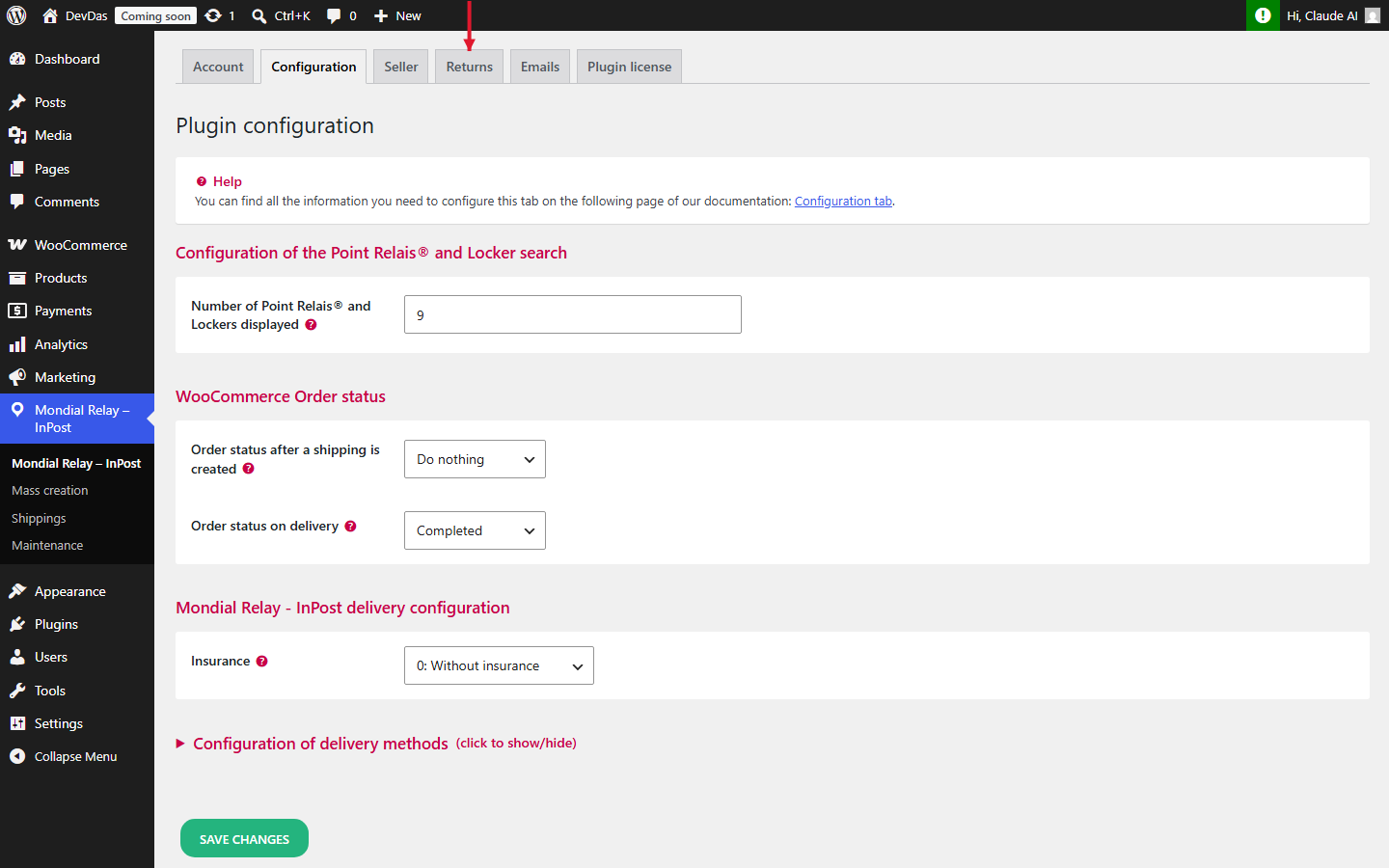
In your WordPress dashboard, click on Mondial Relay – InPost in the sidebar menu, then on the Returns tab.
2. Configure the Returns tab
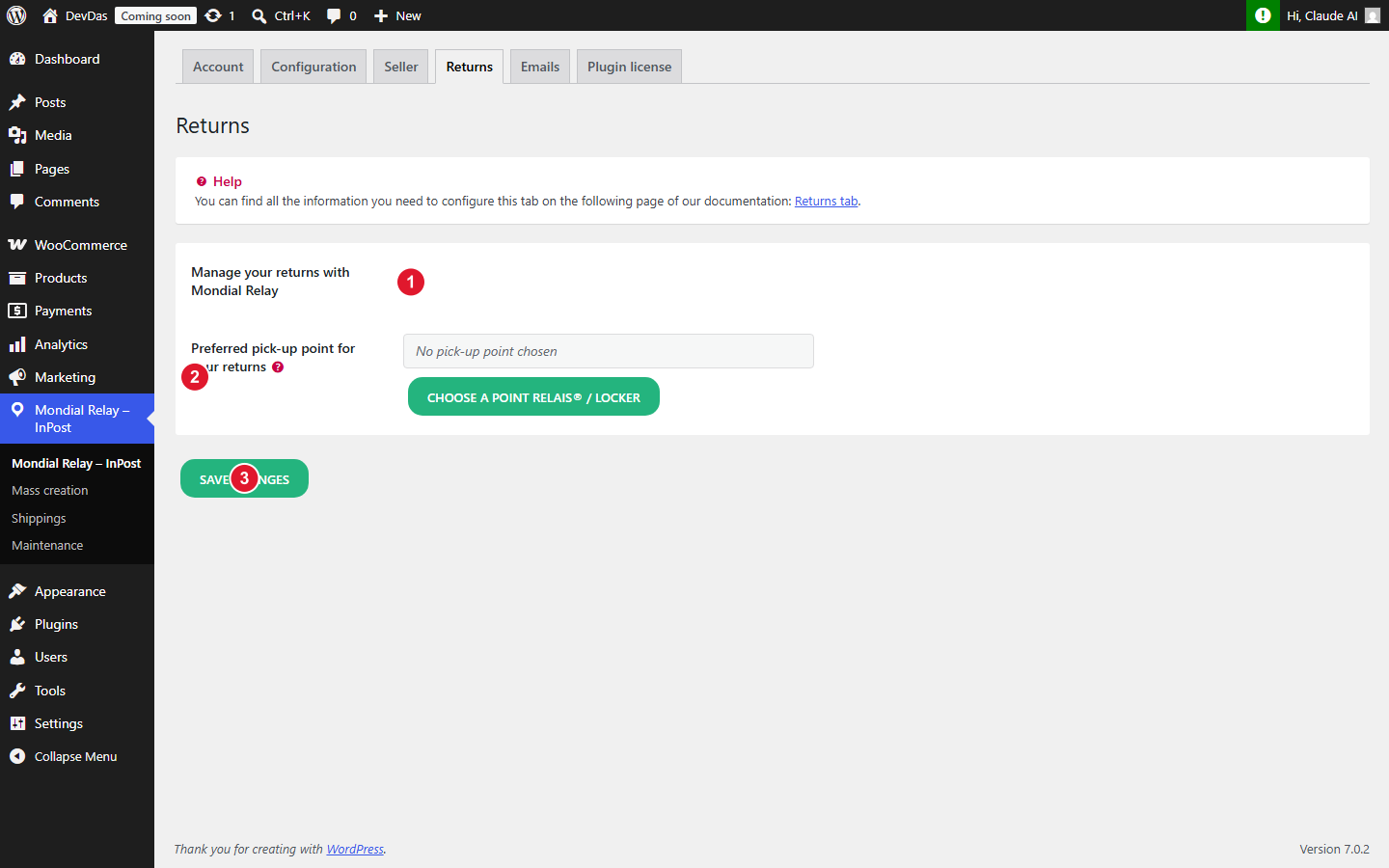
- 1 Manage your returns with Mondial Relay: check this box to enable the return feature. Once enabled, a return label creation button will appear on each order form. Requires that your v2 API credentials are entered in the Account tab.
- 2 Preferred pickup point for your returns (CC accounts only): select the Point Relais® or Locker to which your customers will return their packages. Click on “Choose a Point Relais® / Locker” to open the selection map.
- 3 Save changes: click this button to save your configuration.
3. Create a return label from an order
Once the feature is enabled, a Mondial Relay Return section appears at the bottom of each WooCommerce order form, whether it was shipped via Mondial Relay or not.
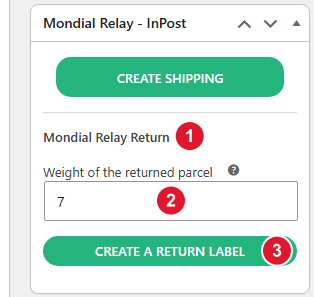
- 1 Mondial Relay Return: title of the return section.
- 2 Weight of the returned package: weight in grams. The value is pre-filled from the weight recorded when creating the outbound shipment (or 100 g by default if absent).
- 3 Creation of a return label: click to generate the label via the Mondial Relay API. Once created, download buttons (10×15, A4, A5) and a Connect tracking link appear in place of the form.
Possible errors
- Error 10056: the configured return Point Relais® / Locker is closed or unavailable. Return to the Returns tab to choose another one.
- Error 10024: the LCC mode (home delivery, non-CC accounts) is refused by the API. Contact your Mondial Relay account manager to verify your offer.